Video Editor

Editing workflow comparison

Online video editor vs YouTube: where should you edit?

The online video editor vs youtube decision depends on whether you are preparing a new video or correcting one already on your channel. Compare the workflows first, then check the controls available in the tool you choose.

Verdict first: prepare or repair?

For a new upload, edit before publishing. For a small correction to an existing YouTube video, check whether YouTube Studio can make the change without a replacement upload. The side-by-side table below breaks down that distinction.

Dimension by dimension

The deciding factors are when you edit, how much you need to change, and whether you need a separate finished file. These scenarios turn those differences into practical choices.

First-time uploader

You have raw footage and want to arrange scenes before anyone sees the video. An editor used before upload is the more suitable starting point; YouTube Studio is not a substitute for planning the initial cut.

Finish and review the video before publishing it to your channel.

online video editor for youtube

Channel owner fixing a mistake

A published video contains a brief unwanted moment. Check YouTube Studio's available edits first, because replacing the upload may mean managing a new video URL and its associated activity.

Make a limited correction while keeping the existing upload when Studio supports the change.

online video editor tutorial for beginners

Creator publishing in several places

The same finished piece must go to YouTube and another destination. Editing before upload gives you a master file to review and reuse, subject to the editor's export options.

Keep a separate finished copy instead of treating the YouTube upload as the project master.

online video editor alternative free

Creator concerned about branding

An exported file must not carry an editor's watermark. Check the selected tool's current export terms before investing time in a project; YouTube Studio edits to an existing upload follow a different workflow.

Confirm the deliverable before deciding where to assemble the video.

online video editor alternative no watermark

Who each suits

Use this three-part decision path rather than choosing solely by the number of controls on a screen.

  1. 1

    Identify the video's status

    If the footage has not been published, work on the initial edit before uploading. If it is already on YouTube, open its Studio editing options and check whether the specific correction is supported.

  2. 2

    Define the finished deliverable

    Need a file for another platform, an archive, or a collaborator? Choose a workflow that produces a suitable export. Need only a minor change to the existing YouTube upload? An in-platform edit may avoid a new upload.

  3. 3

    Test the difficult change first

    Before committing to either route, verify the edit that matters most: a cut, a replacement segment, sound, or a clean export. Available features and restrictions can change, so check the current interface.

Migration path

Changing workflows is possible, but the tools are not interchangeable. Preserve your source material and decide whether the next result should be a revised file or an edit to the existing upload.

1

This comparison cannot edit your published video

Opening an editor through this page does not grant access to your YouTube channel or alter an existing upload. YouTube Studio changes must be made through the channel's own editing controls.

What to do instead

For a published-video correction, inspect the available options in YouTube Studio before starting a new project elsewhere.

2

An external edit cannot replace the same upload

A newly exported file is a separate deliverable. Uploading it to YouTube is not the same as saving an edit to the original video's existing page.

What to do instead

Keep the original upload if its URL and activity matter; otherwise plan how you will direct viewers to the revised version.

3

A file alone may not preserve an editable project

A finished video does not necessarily contain the source clips, timeline, or separate audio needed for substantial revisions. Neither route can recreate missing project materials reliably.

What to do instead

Archive source footage, audio, and any project files separately before moving to another tool.

Side-by-side editing attributes

The table compares a general editor used before upload with YouTube Studio's editor for videos on your channel. Capabilities of individual external editors vary.

Editor before upload YouTube Studio editor
Best starting point Raw footage or a draft that still needs preparation. A video already uploaded to your channel.
Primary result A finished file, if the chosen editor offers the required export. Changes saved to the YouTube video rather than a general-purpose master file.
Initial assembly Choose an editor with the timeline and media controls your project needs. Not intended as a full replacement for assembling a new video from source clips.
Corrections after publishing Revise the source project, export again, and upload a new version. Check whether the available trim, cut, blur, or audio controls cover the correction.
Existing video page A newly uploaded revision has its own video page. Supported edits can be saved to the existing upload.
Use beyond YouTube A suitable exported file can be reviewed or shared elsewhere. Editing is tied to the video on YouTube.
Checks before committing Verify export format, quality, watermark terms, and access requirements with the chosen editor. Verify that your video and intended change are eligible in the current Studio interface.

Picture the handoff

Illustration associated with comparing editing before upload and editing on YouTube
Choose the workflow
Illustration associated with preparing a video for YouTube
Prepare the upload

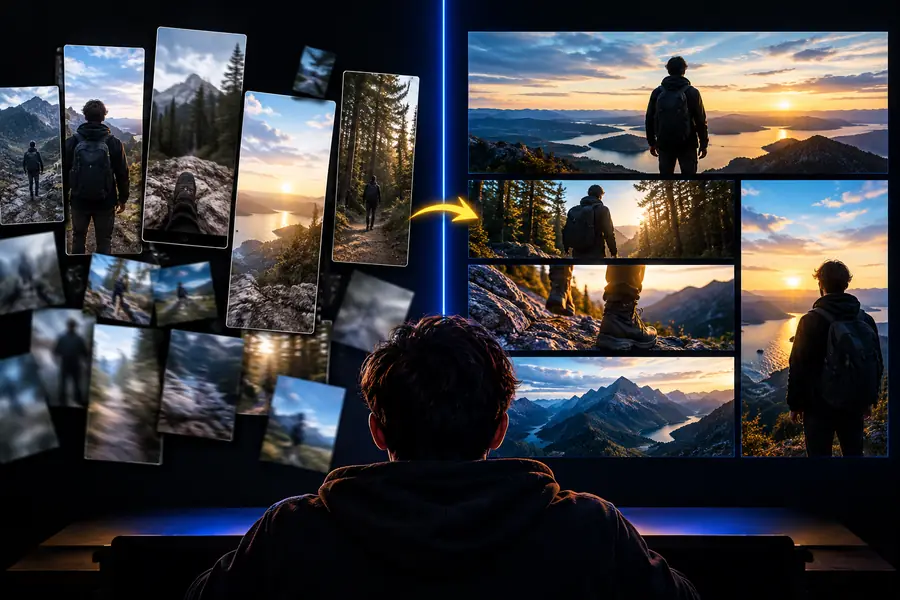
These are editorial illustrations, not screenshots or evidence of specific controls. The key handoff is from an edited, reviewed file to a YouTube upload.

Choose the workflowPrepare the upload

Ready to prepare your video?

For an unpublished video, explore an editing workflow before you upload. Check the destination tool's current features and export terms against your project; for changes to an existing YouTube upload, check Studio first.

Start with the edit your video needs

  • Keep your source footage
  • Review the finished result
  • Confirm export options before committing
Explore video editing

Comparison FAQ

YouTube Studio provides editing controls for videos on your channel, but it is not designed to replace a full preparation workflow for raw clips. Assemble and review a new video before uploading if it needs substantial editing.

Check YouTube Studio first if you want to keep the existing upload and its URL. If its available controls cannot make the change, revisit your source project, export a revision, and plan for a separate upload.

Yes, provided you have a finished file that meets YouTube's current upload requirements. Review the exported video before uploading, including its picture, sound, and any branding added by the editor.

Editing a project elsewhere does not change the video already published on YouTube. Uploading a revised file creates a separate video, so do not assume its page will inherit the original upload's activity.

An editor that produces a suitable separate file is usually the more useful starting point for publishing in several places. Confirm its export capabilities and the requirements of each destination before building the whole project.

Start creating
Start creating